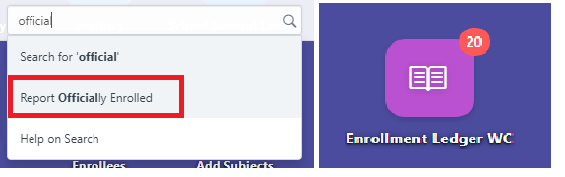
Step 1. In the search bar, search for "Officially Enrolled" or in the "Enrollment Ledger Icon WC"
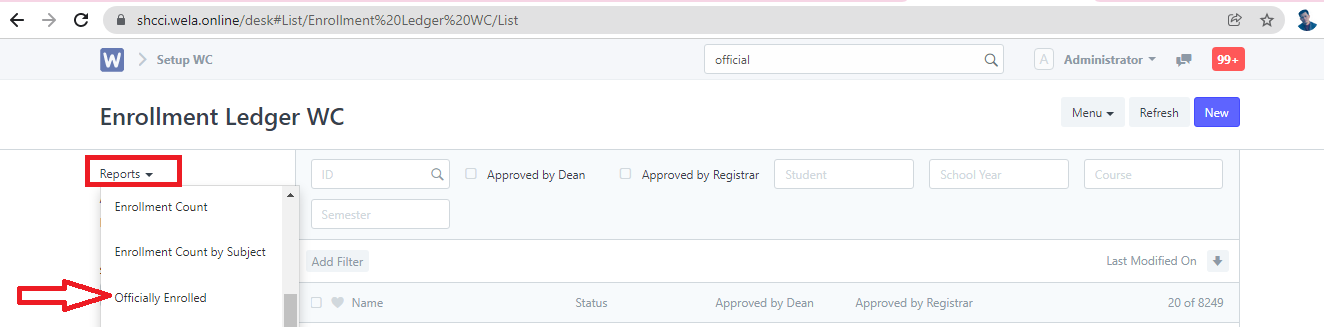
Step 2: In "Enrollment Ledger WC" by click the icon in the desk. Then, click the "Reports" tab located at the left side of the page and select "Officially Enrolled".
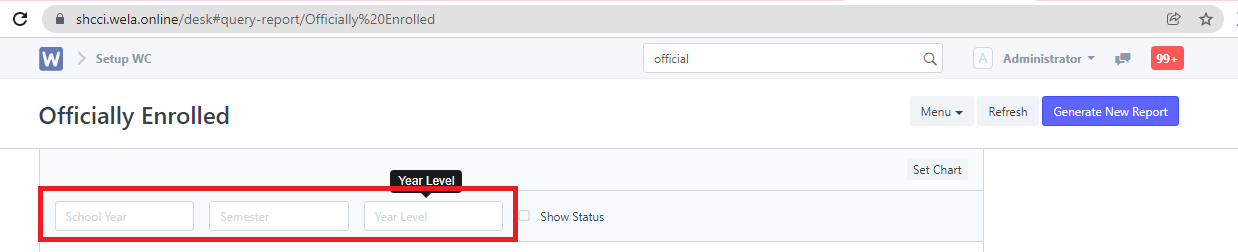
Step 3. Set the necessary filters. After setting the filters, the report will now generate.
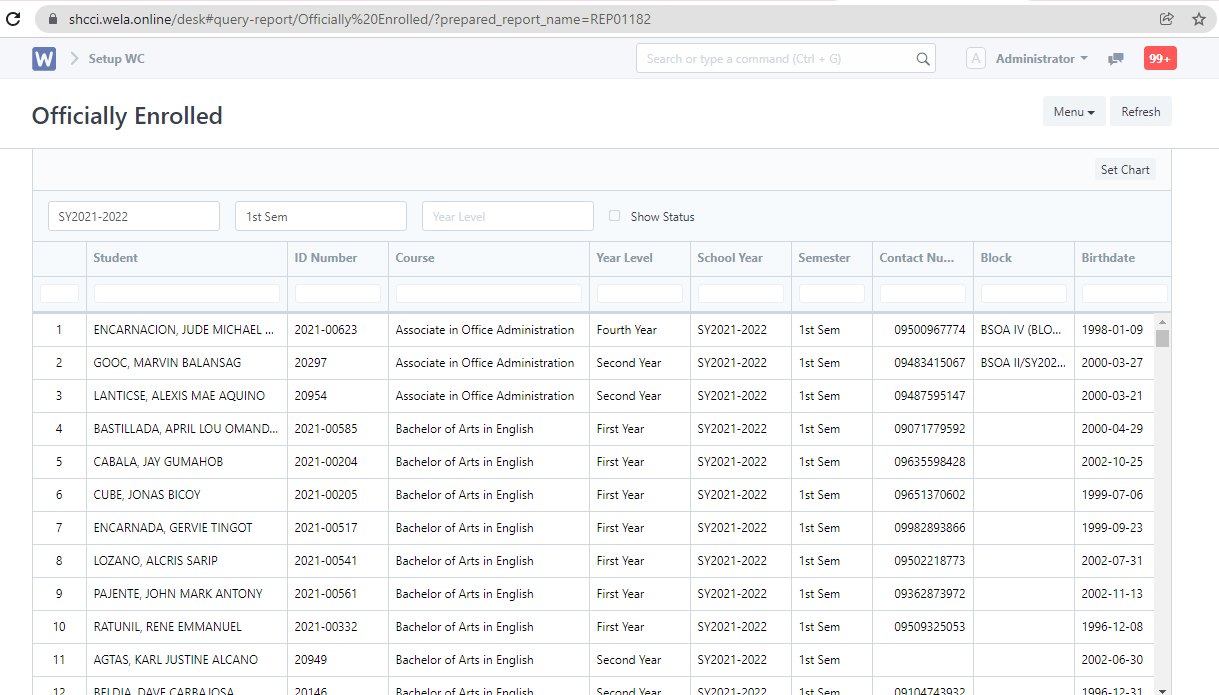
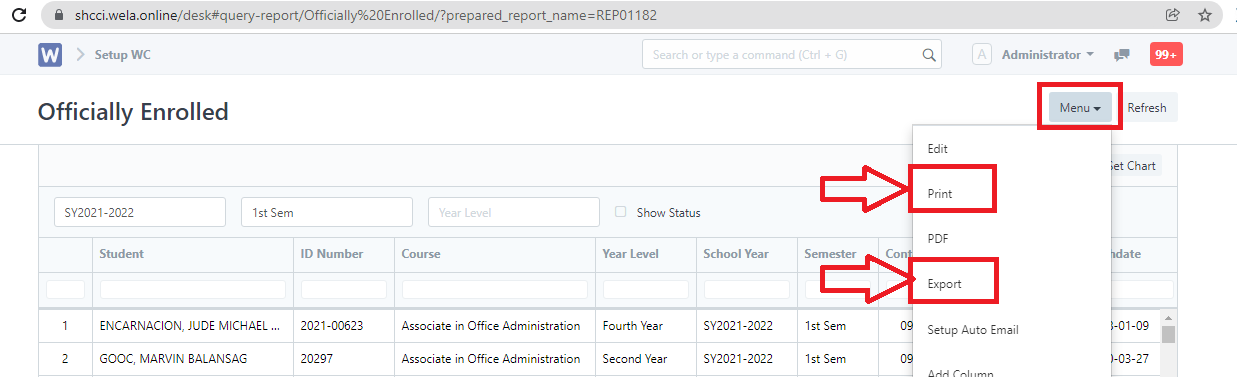
Step 4. To extract the report generated, click "Menu" and select "Print" or "Export" to excel file.